
Ferhat Gölge
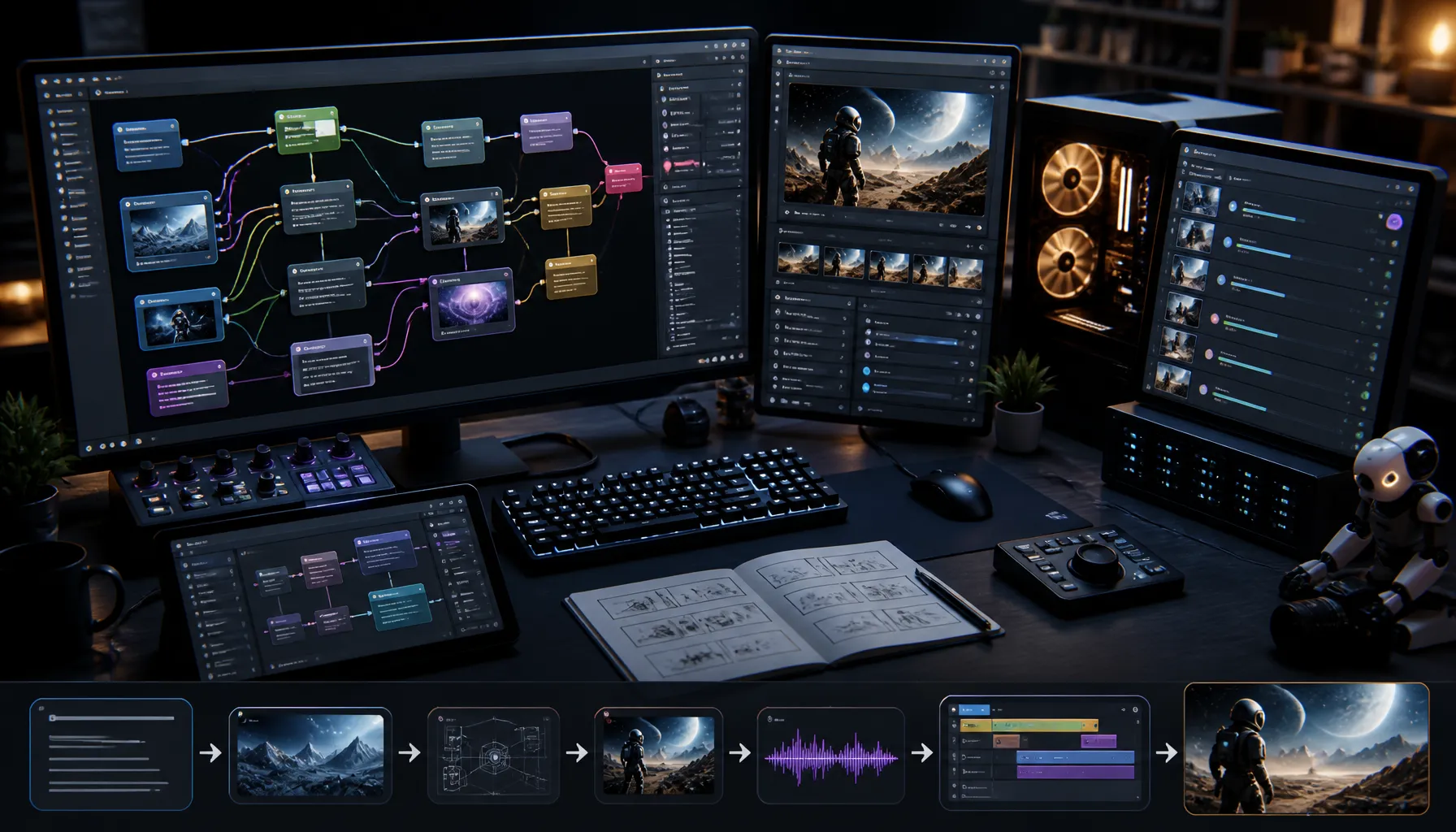
AI Video Generation on My Own Computer: From ComfyUI to Automation
There's a significant difference between producing a single video with AI and creating a regular content series. Achieving a good result with a single video might suffice. However, a series requires repeatable processes such as topic selection, scene planning, visual production, motion descriptions, voiceover, and editing. The real need is not just to produce, but to be able to manage the entire production process.
The goal of this workflow is to produce decent, high-speed video at a very low cost, even if it's not free, at least on computers with high-end graphics cards. While other AI video tools can achieve much higher quality and faster results, their costs are significantly higher.
Comfy Prompt Studio was developed to manage ComfyUI workflows running on a computer from a desktop application and automate repetitive steps. The project, which progressed with AI-powered coding, addressed a real-world production problem with each new feature. The initial question was simple: Is it possible to send a job from another program and generate video there while ComfyUI is open?
How does native video production work with ComfyUI?
ComfyUI is an interface that enables AI generation processes to be built through interconnected nodes. Steps such as model loading, text processing, using the initial image, and saving the output are combined in the same workflow. With appropriate models and workflows, text-to-video or image-to-video generation is possible. In workflows supported by models like LTX-2, audio and video can also be generated together.
Local production means the video calculations are done on the user's computer. However, production time, resolution, and available models depend on the hardware. Automation doesn't increase the graphics card's memory or speed up every production; it allows the working process to run more smoothly and with less manual intervention.
Therefore, the existing ComfyUI workflow was initially preserved. Instead of managing working settings such as model, sampler, resolution, duration, and FPS, the focus was on managing the prompt and initial visuals to be sent from external sources.
Connecting to ComfyUI from the Desktop Application
The fact that ComfyUI opens in a browser doesn't mean it can only be used through the browser. Production jobs can be sent to the background server via HTTP requests. In this project, the connection address was used as http://127.0.0.1:8188 . Here, 127.0.0.1 refers to the same computer; the port may vary depending on the setup.
This connection did not require opening ComfyUI to the internet or developing a separate API server. Furthermore, a ComfyUI API key was not defined in the local installation used. The desktop application communicated directly with existing ComfyUI endpoints. This does not mean that authentication is unnecessary in different network and security configurations.
The difference between normal workflow and API format.
The most critical preparation was exporting the workflow as JSON in API format . The normal workflow file, which stores the layout in the visual editor, and the structure sent to the server for execution are not used for the same purpose. The application needs the data in API format to be able to modify node IDs and input values.
The initial version consisted of a small interface built with Python and tkinter. The user would upload the workflow file, select positive and negative prompt fields, and then start the production. Since a copy of the workflow was created for each job, the original file was preserved.
API path for processing: Checking required node types: GET /object_info Uploading the startup image POST /upload/image Sending the production job to the queue: POST /prompt Querying the queue: GET /queue Querying the result of a specific job GET /history/{prompt_id} Retrieving the output file: GET /view
The server receives not just a single sentence, but a modified workflow graph. prompt_id returned when the job is validated and queued is stored to track production. Although live event tracking is possible with WebSocket, in this version the queue and history are queried at specific intervals.
From One Word to Four Scenes Content Plan
After the initial connection was established, the need expanded to include the creation of short videos teaching English vocabulary. Instead of recreating similar files and descriptions for each word, the goal was to develop a structured production package from a single input.
The existing Codex session was used in the planning phase. The Turkish meaning of the word, its British English IPA notation, two example sentences, and their translations are being prepared. The content is divided into four scenes:
- An introductory scene that introduces a word or object.
- A pronunciation scene focusing on the sound of the word.
- The scene that visualizes the first example sentence.
- The scene shows the second example in a different context.
Each scene's visual prompt, motion description, negative prompt, and voiceover script are kept separate. This creates a workable plan for the application instead of a scattered text. However, the scene durations in the plan do not automatically change the video duration in ComfyUI; workflow settings need to be matched separately with the editing goal.
Human Control Within Automation
Approval steps for plans and visuals were maintained throughout the production chain. This is because an automatically completed process doesn't necessarily mean a usable result. An incorrectly opened taxi door or a deformed object can degrade the video quality, even if subsequent stages run smoothly.
Therefore, prompt editing, additional correction notes, and external image uploading options have been added to scene cards. Only the problematic scene can be refreshed. The approval is removed when the image changes; this prevents the old video from being used as if it were produced with the new image.
Job tracking is equally important. A request not receiving a response doesn't prove it didn't reach ComfyUI. Instead of blindly resending, job IDs, workflows used, and status information are recorded. This allows the same production result to be queried later, even if tracking is paused.
Voiceover and Editing with FFmpeg
The voiceover was generated in both English and Turkish via ElevenLabs. However, adding a new voice to each scene wasn't ideal. Especially if the pronunciation scene was already produced with spoken dialogue, a second voiceover could compromise intelligibility. The solution was to reduce voice control to the scene and language level.
English and Turkish voiceovers can be turned on and off separately for each scene. The video's own sound can be preserved, muted, or completely turned off. If a valid file exists for the same text, sound, and model, the existing file is used instead of reproducing it.
FFmpeg handles the editing. Clips are converted to common size and FPS values, selected audio is inserted, and scenes are combined into a single MP4 file. Instead of silently cutting off the audio when it doesn't fit in the scene, the user is given the option to change the duration or extend the last frame.
The Development of Text and Interface on Videos
A separate area was also developed that generates transparent PNGs for words, meanings, IPA (Instrument for Preferences), and examples. Initially, color and layout options referencing the scene image were added to the plain text drawing. Later, an option was created to prepare the text's texture and decorations for the visual production tool.
For example, a title with a wood texture suitable for a woodworking workshop scene can be prepared. However, since errors may occur with Turkish characters and IPA symbols, the control remains with the user. The current version prepares PNG files; it does not automatically overlay them onto the final video.
Initially opened in separate windows, the plan, image, video, audio, and PNG areas were gradually moved to tabs within the main window. This ensured that the text entered and selections made between stages were preserved.
Not Completely Offline, a Hybrid Production System
In Comfy Prompt Studio, video production is done locally via ComfyUI, and editing is done locally with FFmpeg. Planning and visual production are handled by Codex, and voiceovers by ElevenLabs, all through online services. Therefore, it's not accurate to describe the system as entirely offline or completely free.
The project's main achievement wasn't just producing flawless video with a single click, but transforming repetitive tasks into a measurable workflow. It became possible to review the plan, simply revise the problematic scene, and resume production from where it left off. ComfyUI's API provided the link between the native production engine and the customizable desktop application.
Currently, my program is version 0.7. As I progress, my goal is to create complex and integrated videos on my own computer at a very low cost. You can check out examples of the workflow on my YouTube channel, golgeadasi_english.
Keywords: ComfyUI, Comfy Prompt Studio, AI video generation, local video generation, video automation, ComfyUI API, image to video, text to video,…
Frequently Asked Questions
Is it possible to generate video from another program while ComfyUI is open?
<p>Yes. A workflow can be submitted via ComfyUI's API, the production queue can be tracked, and completed outputs can be retrieved. Comfy Prompt Studio automates repetitive tasks by managing these processes from the desktop interface.</p>
Does Comfy Prompt Studio work entirely on a computer and is free?
<p>Video production is done locally on a ComfyUI installation, and editing is done on a computer using FFmpeg. However, planning and visual production with Codex and voiceover with ElevenLabs are dependent on online services. Account access, usage limits, and service fees may apply during these stages.</p>
When using automation, is it necessary to recreate each scene?
<p>No. The visuals or audio of the problematic scene can be updated separately; existing recorded outputs will be preserved. Additionally, English and Turkish voiceovers can be selected for each scene. If the video was already produced with spoken dialogue, the new voiceover can be turned off and the video's original audio can be used.</p>